

In my last article, I talked about how I’m using digital tools to complete my sabbatical project this semester, where I’m, among other things, doing an extensive research review for the second edition of my book on flipped learning. My go-to tool that’s emerged for discovering papers to read is Scite.ai, an AI-powered research assistant. I’m using Zotero to organize, read, and annotate my papers and keep them organized. Finally I use Todoist to keep track of what I’ve done and help me understand what to do next.
But the main work of this part of the project is taking my notes in Zotero and getting them into one place, where I can keep them organized and try to find connections between them, so that I can begin to look for large-scale patterns, which I’ll then write about for my readers. Eventually, when I sit down to actually write the manuscript for this research review, it would be ideal to have my notes from the reading in the same place as the partial drafts for the research review so that the manuscript will just simply be stitching together things that I’ve already done.
The tool for this is my old favorite, Obsidian. And in this article, I’m going to explain how I am using this note-taking tool to accomplish these tasks.
Obsidian redux, and plugins
I’ve already gushed about Obsidian in this article and explained what it is and how I’m using it. But for those who are new: Obsidian is a note-taking app. The notes in Obsidian are just plain text Markdown files, and the app itself is simply a wrapper of code around a folder, or “vault”, of those plain text notes. The app simply provides functionality for organizing and manipulating your notes.
The functionality that Obsidian provides is incredibly extensive. It includes things like text formatting, native LaTeX support, and especially backlinking, where you can create links from one note to any other very simply. Backlinking allows you to take a vault of notes and turn it into essentially a mini Wikipedia.
Some of this functionality is native to Obsidian and always-on. Obsidian also possesses an ecosystem of plugins, which provide additional features that can be switched on or off. Some of these are called core plugins and are available to all users by default. The core plugins include things like daily note templates, tools for showing a table of contents in a note, a command palette, and more.
The core plugins are all fairly standard features and not terribly exciting. Things get much more interesting when you expand to include community plugins. These are developed by individuals and other third parties and cover a very wide variety of potential uses. A full list of these is here and there is so much variety in that it’s impossible to summarize them. Just go to the link and start scrolling to see.
Two of these community plugins are going to be especially useful here:
Dataview allows you to put SQL-like code into a note that will run a query in your vault, like a database, and bring back relevant information formatted in different kinds of ways that is dynamically updated as you change and add notes. For example, here is some Dataview code that I use in my daily journal notes that creates a list of all other journal notes from the same day in previous years:
dataview
   LIST FROM “Journal”
   WHERE file.cday.month = date(now).month AND file.cday.day =     date(now).day
   SORT file.cday ASC
Dataview is an incredibly powerful, and fairly complicated, plugin that is well worth the learning curve because it lets your vault become a true “second brain” that you can “pick”.
Zotero Integration is another community plugin that, as the name suggests, connects Obsidian to Zotero and gives you functionality for inserting and importing citations, bibliographies, notes, and PDF annotations1.
Let’s begin by looking at Zotero Integration.
Setting up Zotero Integration
Zotero Integration is how I pull notes and annotations and other info from papers that I’ve read in Zotero, into Obsidian notes. It is not easy to get this to work, I must admit. Let me explain how I have Zotero integration set up. To give a full explanation, I have to get into some serious weeds though, so bear with me.
First, there’s another plugin that has to be downloaded and installed in Zotero (not in Obsidian!), called Better BibTeX Integration. It’s worth explaining exactly what this Zotero plugin does. When referring to a paper in Zotero, the program uses what’s called a citekey. This is an identifier unique to every item in your Zotero library. Having a citekey for every paper prevents “collisions” from happening. For example, if you had two different authors whose last name was Smith and they both authored papers in 2020, in everyday language and probably in your citation in a paper, you’d refer to each one as “Smith 2020”, but this could be two different things. But in Zotero, each paper has a different citekey.
That citekey has to be rather long and complicated in order to avoid the collisions. Better BiBTeX makes it somewhat more readable, but it’s still a little on the long side. For example, this week I read the paper “The Impact of Flipped Classroom on College Students’ Academic Performance: A Meta-Analysis Based on 20 Experimental Studies” by Qing Zhang, Elizabeth S. T. Cheung, Christian S. T. Cheung this morning. The citekey from Zotero, using Better BiBTeX, is zhangImpactFlippedClassroom2021. In my manuscript, I would likely refer to it as “Zhang et al. 2021”. The difference between the citekey that I’m given, and what I want to call it, is going to become important a little later.
Now let’s go back to the Zotero Integration plugin in Obsidian. I’m going to walk you through the steps of going through the settings in this plugin in case you want to try this yourself.
Open up the settings for the Zotero Integration plugin by going to Obsidian’s settings, scrolling down to Community Plugins, and clicking on Zotero Integration. You’ll get this window of settings:

In the top part of the settings, leave everything the same as the defaults, except switch on “Open the created or updated note(s) after import” (which just automatically opens the note that you create when you run the plugin) and “Enable annotation concatenation” (more on that in a minute).
In the middle portion of the settings is where things get interesting.

I don’t do anything with “Citation Formats”, but “Import Formats” is how you define what the note looks like when you import annotations from Zotero — so that’s a big one. This allows you to define different styles of notes for different kinds of imports; for example I might make notes contain one collection of information for my book, and define a different style for personal research.
If you click on the “Add Import Format” button, you are presented with fields for information about what resulting notes should look like and where they should go in the vault.
Under “Name”, give your import style a name. I’m only using one style, and I call it “Import annotations”.
“Output Path” tells Obsidian where to put imported notes in your vault. All or mine are dumped into a single folder in my vault called “Research”. Note the {{citekey}}. Anything that appears in double curly braces is a field that the plugin will populate using metadata from Zotero when the plugin operates. Every Zotero paper is given a large collection of metadata about the paper, including the citekey, and the Zotero Integration plugin taps into that metadata. So when I create a note from a Zotero paper using this plugin, it’s going to create a file whose name is whatever the citekey is (the .md extension just indicates it’s a Markdown file), and it sticks it in the Research folder. All this is done for me automatically by the plugin.
If there’s an image associated with the file, for example if I’ve highlighted a table or a graph in the original paper, the “Image Output Path” field allows you to tell the Zotero integration plugin where to put it in Obsidian. The next field, “Image Base Name”, I just leave alone.
The next field, “Template File”, is all-important. To use the Zotero Integration plugin, you have to provide a generic template to Obsidian to tell it how to format the note that you’re creating. This is a separate Markdown file that lives in your vault, that Obsidian makes a copy of when the plugin is activated, and then populates it with the data being pulled in by the plugin.
Unfortunately, creating a template file from scratch takes a considerable amount of work and coding know-how. The typical practice is to find somebody else’s template file, and just use that, with some light modifications. I have done so, and I am going to pay that forward by giving you my template file, which you can find here.
I’ll just let you look through this template file and not attempt to break down every single part of it. But I do want to note a few things about it.
The top portion lists Properties. Every Obsidian note has Properties, metadata about the note itself, and these properties can be tapped into by the Dataview plugin, which I mentioned earlier. In my template, I’ve added a few tags, for example, that are specific to the second edition of the book that I’m writing, which will be added to every note that I create using this template. And note especially the one that says “aliases”. We’ll come back to that later.
If you scroll through the rest of the note, you’ll see different sections and some code that tells Obsidian what to do with the data that the Zotero plugin is pulling into it. Like I mentioned earlier, anything that’s encased within double curly braces is metadata from Zotero that will be auto-populated in the note. Anything that’s encased within single curly braces with a percent sign next ({% %}) is additional code that performs actions. For example, it takes the colors of annotations from Zotero and turns those into section headings.
I should mention that I did not write this template myself. I stole this from another person and unfortunately I cannot remember exactly where I got it from. Otherwise I would give that person a lot of credit for creating a pretty cool template that does neat things as you’ll see.
Using the Zotero Integration plugin
With that initial setup done, we’re now ready to actually use the plugin, and fortunately, this isn’t very difficult to do. But: There are two additional steps over in Zotero to complete before this plugin really does all that it’s capable of.
Over in Zotero, if you open up a paper, there is a pane on the right that shows you all the metadata that’s associated with it. Two fields are of particular importance. One is the “Extra” field, and the other, which requires an additional click, are tags that you place on the document. The first thing I’m going to do is go to the Extra field and put the handle that I would normally use to refer to this paper: for example “Zhang et al 2021” instead of the citekey zhangImpactFlippedClassroom2021.

The second thing is to add tags to the document with any tag I would like to see in Obsidian.

My import template will take whatever tags I have on the document in Zotero and turn them into Obsidian tags. An important thing to note about tags in Obsidian is that they can’t contain spaces. So when I add a tag that’s multiple words, like “flipped classroom”, I have a convention where I use all lowercase and a dash to separate words. So I want to have a consistent naming scheme for tags on both tools, that will work on both tools.
Still with me? Now we can actually use the plugin.
First, go into Obsidian and hit Control-P to open up the command palette, and then type in the name of your import format. That was the field we entered into earlier, and I called mine “Import annotations”. This will send you to the command to employ the Zotero Integration plugin. As you can see here, I’ve assigned a hotkey to this (Command-Shift-Z) because obviously I’m using it quite a lot.
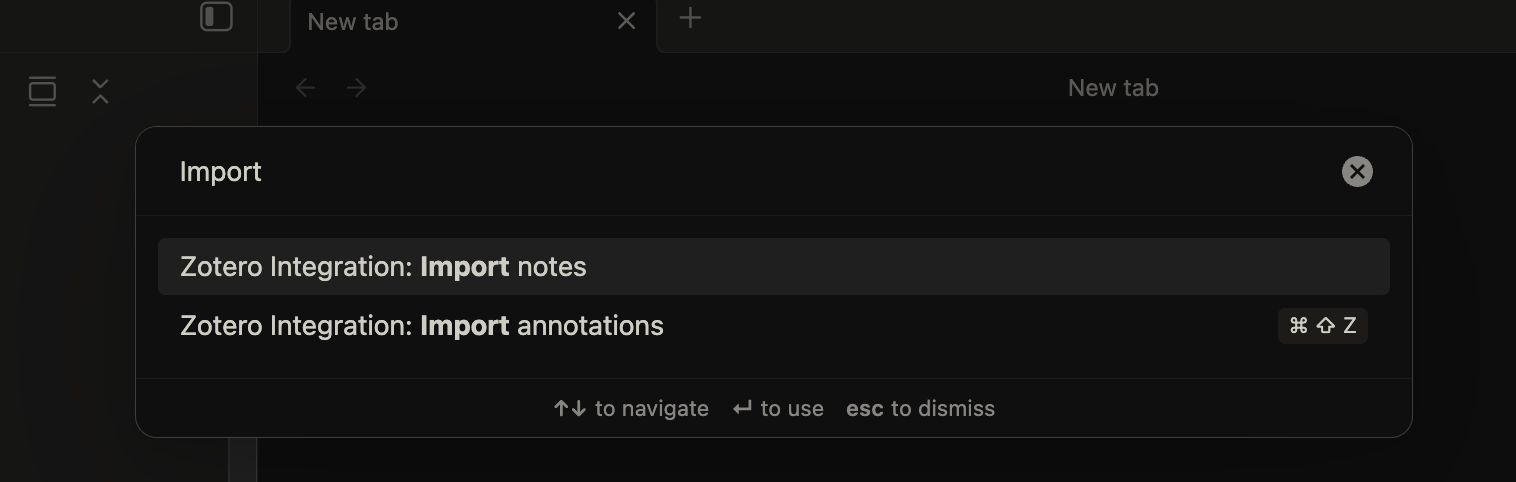
You’ll be presented with a little menu that shows the most recently accessed papers from Zotero. The one at the top of this list will be the one that you accessed most recently. If you don’t see it in the menu, you can just search for it. So find the one whose notes you want to import, select it, and hit enter.

After a little bit of thinking, you will be presented with a note that has all your annotations in it. This note now exists and is in the folder that you told the plugin to put it in.
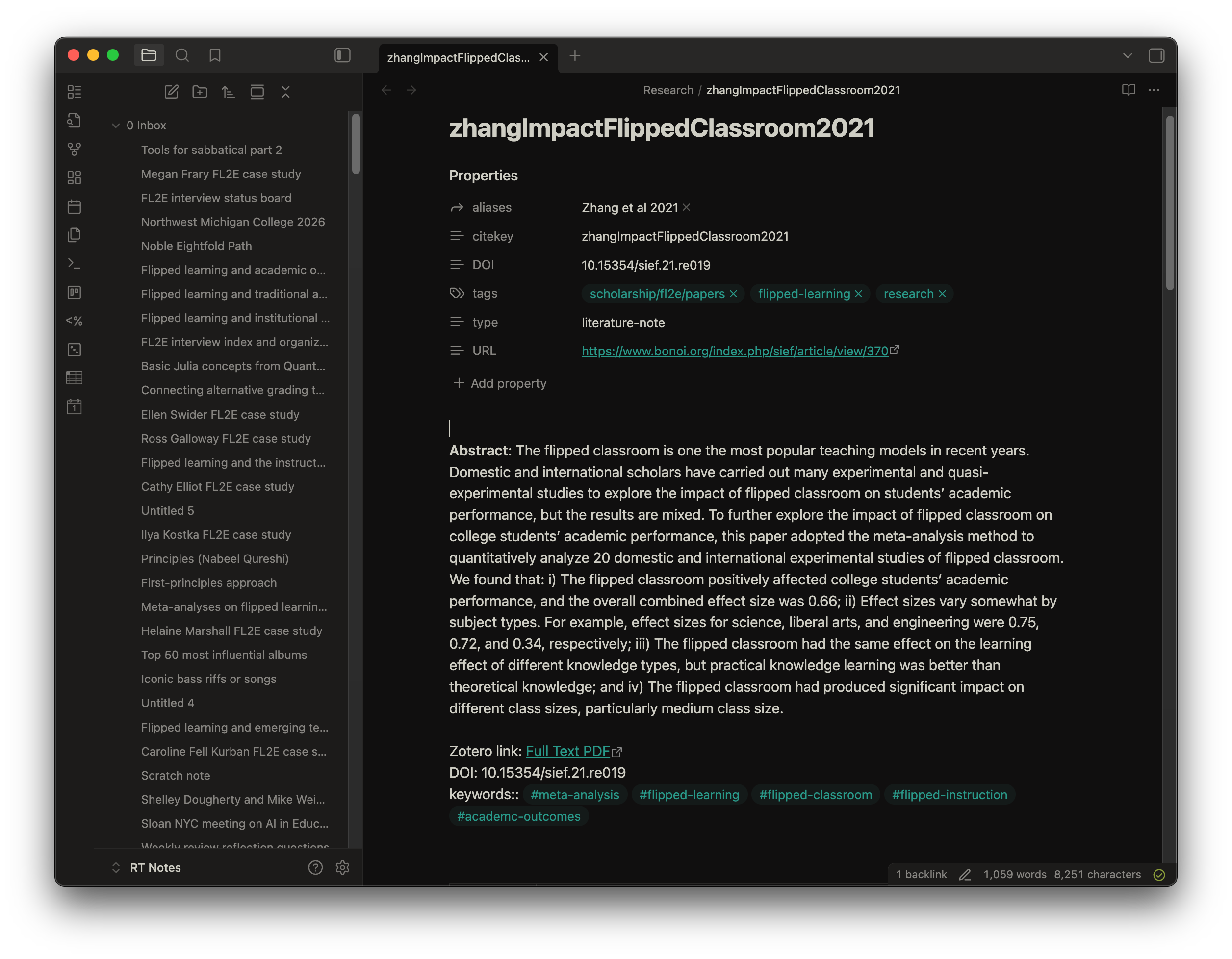
I want to point out one specific element of this note, and that’s the “aliases” field at the top. In Obsidian, an alias to a note is just another way that you can refer to that note instead of its title. This is very important for things like backlinking, which I do a lot of in this research review. My template sets the title of an imported note by default to be the citekey of the paper in Zotero. That string can be, as I’ve mentioned, quite counterintuitive. What I want is to have an alias that is set equal to how I would normally refer to it.
Remember from earlier that we manually added that preferred handle for paper into the “Extra” field in Zotero. The import template used by the plugin pulls whatever is in the “Extra” field in Zotero and sticks it into the “aliases” field in Obsidian. So as long as I manually set the extra field equal to the paper’s preferred designation, the plugin will do the rest and make that the alias, which I can then use in Obsidian to refer to it the way that I want to.
The reason I do it this way is that if I add the alias after the import into Obsidian, then any future updates to the note will overwrite the alias. Remember in the setup phase we switched on a feature to “Enable annotation concatenation”, which lets future updates to Zotero notes to simply be tacked on to the end of existing Obsidian notes. However, after a full day of trial and error, I learned that it does not preserve the properties of the note. Those are overwritten every time the plugin is run, and the alias is reset back to being blank. So the only way to get the alias into the Obsidian note so that it sticks, is to put it into the Zotero metadata, in the Extra field and then pull from that field.
Isn’t this fun?
What to do with the notes
So this plugin allows me to reach into Zotero, grab information from a paper, and summarize it into a note in Obsidian that is plain text, perhaps with embedded images, that I can now use. But how exactly should I “use” them?
One powerful way to use these Obsidian notes is to link them together using backlinks. I am doing a lot of this in writing the research review. When I’m creating an outline or writing a draft of one section of the research review, I can simply backlink to notes about research papers, with my annotations from the research paper right there. So when I’m writing the draft, the detailed notes on each paper are no more than one click away.
Another very useful way to employ Obsidian is to create hubs or homepages for different overarching ideas or sections of the book that I’m writing. For example, the hub that I’ve created for flipped learning and the COVID-19 pandemic includes the Scite.ai summary that was generated when I first did the research on this, as I described in my last post; links to references; and the outline of the section and possible additional notes that I might want to think about when I’m writing this section up later. And on each hub, I have also included some data view code that will pull in links to every note related to papers that pertain to that topic:
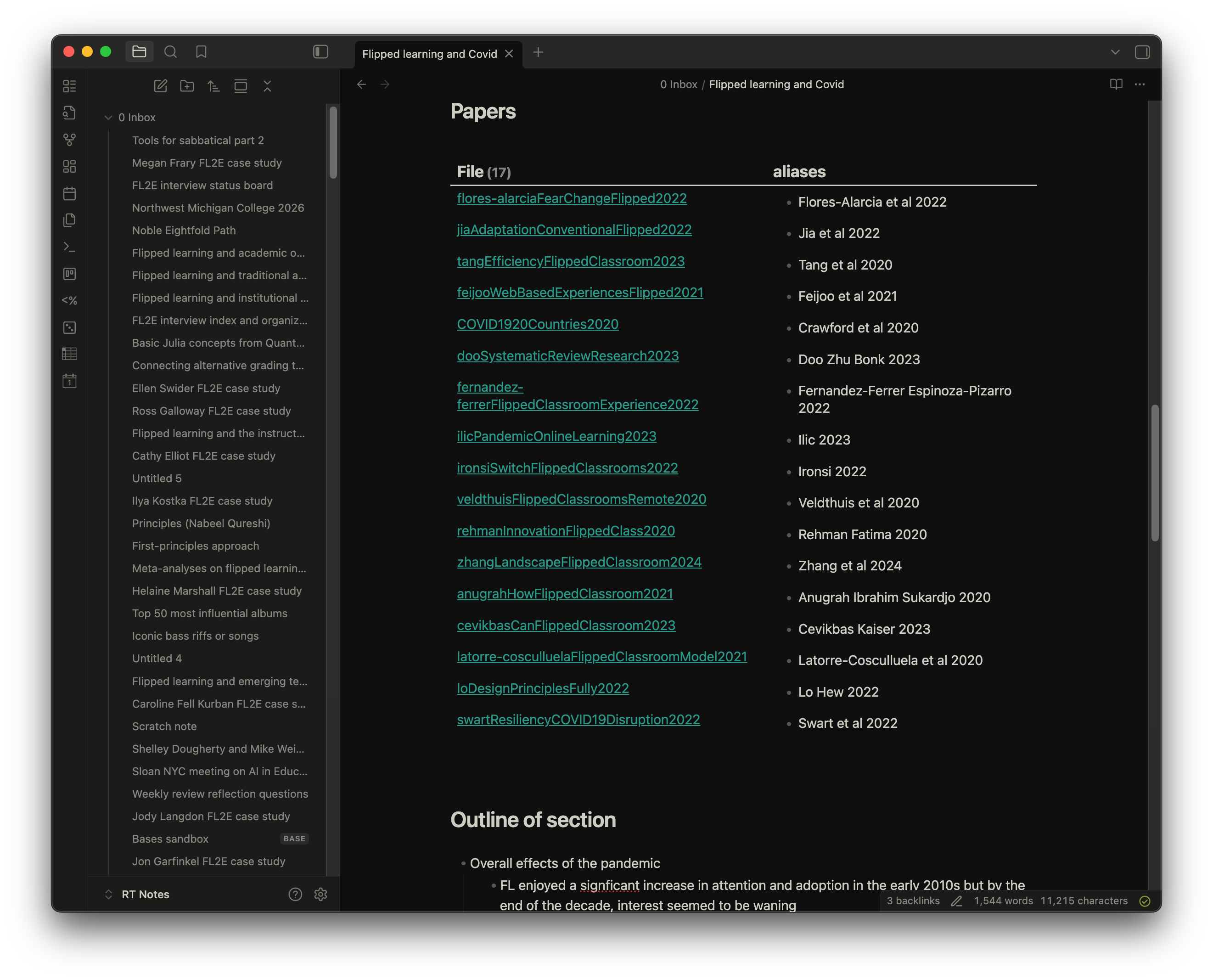
The code I am using here is:
dataview
   TABLE aliases
   FROM #scholarship/fl2e/papers AND #covid
   where aliases
   SORT file.cday DESC
So by careful use of tagging when I create these notes, which is done automatically for me by the import template that I showed you earlier, I have a hub that contains an outline, a summary, and links to all the detailed notes for every paper that I intend to include. Eventually, there will also be a link to the actual draft for this section, which I’ll create in a separate note, but then backlink it into this hub.
A third and final way that I’ve been using Obsidian to organize the notes is a big picture overview using what’s called a canvas. A canvas in Obsidian is a two-dimensional, free-form landscape that you can use to organize anything you wish — notes, links, images, and so on.

Here in my canvas, I’ve created separate areas for the different aspects of the research review that I’m doing. And then within each colored area for different sections, I am putting little mini versions of the paper notes that I pulled in from Zotero. These have links to the full notes on each paper, along with a very brief summary that gives me an overview, so I will know how all these papers fit together and I can click into any specific paper easily. The canvas has been very helpful for me in creating the basic shape of the outline for each section. It allows me to visually connect not only notes to other notes, but large areas of interest to other large areas of interest.
What this is all for
If you’ve made it this far without skipping anything, then you have more patience than I do.
Doing this kind of research review is hard because the field that you’re studying is quite big, and what you want is not merely to glean information and insights from a single paper but from possibly hundreds of them and join them together to surface big insights that cut across the entire field. You still have to get into the weeds of one paper at a time, which is hard enough. But you also have to think about the connections between each paper, and there are so many connections that simply remembering them all is a physical impossibility. And, you have to discover overarching narratives that are emergent properties of the papers and the connections between them.
On the micro level of studying one paper, Zotero does a good job of letting me add my thoughts and highlight important things about it in a way that is accessible later on. On the macro level of connecting all these thoughts and ideas into a networked system where I can see the connections and also zoom out to see the big picture, Obsidian really shines.
And eventually, of course, I have to actually write the manuscript (early next year). My hope is that I will write the draft of the manuscript also in Obsidian. But when I say “write”, I don’t mean come up with every single piece of content from scratch. As I’m doing the reviews, I’ll also be writing snippets of what I intend to put in the manuscript. So that when it comes time to write stuff for the publisher, all I will need to do is go through and stitch together the things that I have already written in pieces and smooth it out. This is often how I write blog posts: I’ll capture passing thoughts and dump them into Obsidian notes and tag them. And then when it comes time to write the blog post, it’s really just a matter of pulling things together that I’ve already written down, and then editing into a (hopefully) coherent whole.
A short conclusion
This blog post is ridiculously long as it is. So let me just end by saying: Coming into this project, I knew what I needed to do and what assistance I was going to need from the tools that I have at my disposal. I spent a solid week at the beginning of my sabbatical just getting the infrastructure and the tools set up and working properly. Having done so, it has probably saved me more than a week in terms of actually doing the work. In fact, at this point, I would estimate that I am about three weeks ahead of schedule on the whole project. My hope with this pair of posts is to give anybody who is in a similar situation, and could benefit as I have from digital tools, some blueprints they can use and perhaps tweak to their own special cases. I certainly don’t believe I have an optimally functioning system, so if you have suggestions or any further tricks or changes, please leave those in the comments.
Zotero Integration is not to be confused with other Zotero-related plugins similarly named such as Zotero Sync, Zotero Link, or Zotero Bridge.
Thanks Robert, it's very helpful to have this level of detail. I have been looking into Zotero, as I would like to rekindle my old academic studies and have many PDFs sitting in my OneDrive folder. I have a few questions please:
Do you do all your annotations just using Zotero's built-in PDF reader?
Have you tried out the Zotero mobile app (android/iOS)? As well as reading and annotating the PDFs on my laptop, I would love to be able do this on an iPad, and then have those highlights/notes sync with the PDF on my laptop (and into my Obsidian).
Do you use Zotero's own storage (for files)? The mobile app syncs across devices but only supports Zotero 'stored files' (not 'linked files'), and Zotero's free tier is only 300MB. I would be in its >6gb tier which is $120/year which is too expensive for me. However it also supports WebDAV so I am looking into that, for instance with Koofr which gives 10gb free.
https://www.zotero.org/support/kb/webdav_services
https://koofr.eu/blog/posts/koofr-with-zotero-via-webdav
https://mubtasimfuad.com/tools/zotero/
May I please clarify, when you say "When I’m creating an outline or writing a draft of one section of the research review, I can simply backlink to notes about research papers, with my annotations from the research paper right there" - are you saying you create 'outgoing' links [[...]] to the the research paper notes within the body of the outline/section draft note you writing (so the latter becomes a 'backlink' in those research papers); or are you saying you create an 'outgoing' link to the outline/section draft note in the related research paper notes (so they appear as 'backlinks' in the outline/section draft note)?
As I understand it, in Obsidian 'linking' is the manual action of inserting a link, by typing [[Note B]] in Note A (ie. a forward/outgoing link), from which a 'backlink' (incoming link) is automatically generated in Note B which can be viewed in the right sidebar (or at the bottom of Note B if configured in settings). Sorry I'm not meaning to sound fastidious, just trying to get my head round it! :-)