

“Simplicity is the ultimate sophistication”, said Leonardo da Vinci1, and this is a belief that can guide our life and work as we venture into the new year. I wrote about my goals for 2026 last time, but the more I think about them, the more I think I have just one goal: Simplify.
That includes the tools we use, and this year I’m running a series of articles about simple, often free-to-use tools that are useful for people in higher education and often hide in plain sight, and some ways they can make our life and work easier and more centered on the right things. Today is the first of these, and I’m focusing on a tool I have come to appreciate and rely upon, but which surprisingly few academics seem to know about: Google Keep.
What is Google Keep and what’s so great about it?
Google Keep, obviously made by Google, is a very lightweight note-taking tool. The notes that you take with Google Keep come in the form of little cards, and those cards can contain plain text, checklists, images, links, audio recordings, or just about anything else you can imagine that you would want to, well, keep.
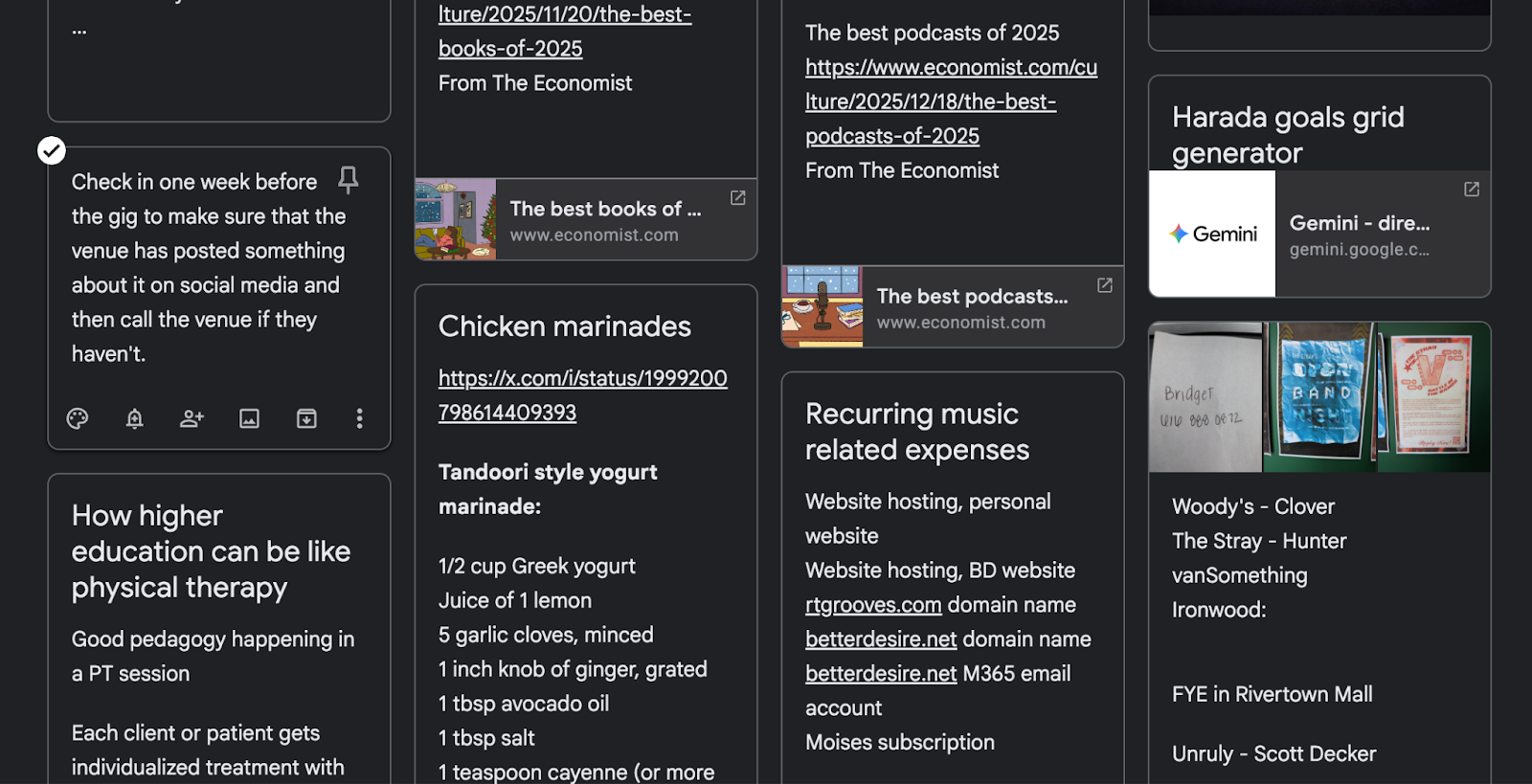
You can access Google Keep at keep.google.com as well as through apps on your devices. You do need a Google account to use it. Like just about all Google products, it is free to use and there are no constraints on the free version.
There are a lot of note-taking apps out there, some of which have more capability than others. (I’ve already written a lot about my love for Obsidian for example.) So why consider Keep?
It’s free to use and cross-platform. There are some notes tools out there, like Apple Notes or Samsung Notes, that are excellent but which lock you into an ecosystem. Some apps are great and cross-platform but require a subscription to get past a very limited free version. For me, true cross-platform capability is a deal breaker for any tool, I have found Google Keep to work extremely well on every mainstream device, especially in a browser. And free is nice2.
It doesn’t have a lot of features. This sounds like a negative, but it’s actually a big plus. Google Keep does not (yet!) try to do everything that a user could possibly want it to do. You cannot, for example, embed a PDF and handwrite on top of it3. You can do both of those things in apps like Microsoft OneNote or Evernote — and you pay for it, either in terms of a subscription or in terms of feature bloat that complicates synchronization, or both4. The fact that Keep keeps things very simple means that it’s fast, it’s reliable, and you’re not paying for servers5.
It integrates well with the Google ecosystem. For example, you can take any Google Keep note and convert it into a Google Doc with a single click. This may or may not be useful to you, but as someone who has a lot of investment in the Google ecosystem, it matters to me.
The minimalist, protean nature of Google Keep makes it useful for a surprising number of applications. Here are 10 uses, many of which I use in my daily workflow, that you might find helpful.
Use #1: Ubiquitous capture
The foundation of most functioning productivity systems is ubiquitous capture. That means that no matter where you are or what situation you are in, you have a way of getting things out of your head and into a trusted system that you can review later. There are as many ways of doing capture as there are people, but Google Keep is a great platform to consider for this.
Google Keep can be present just about anywhere you are: at your computer, on your phone, or even on your smartwatch if you have one. I’m trying to do much more analog life this year, but I usually still have my phone nearby even when I am trying to be “off grid”, and if needed I can use it to capture stuff.
Use #2: Extracting text from photos
If you take a photo of something with your phone (or add a photo from elsewhere to a Keep note by dragging and dropping it), once the photo is added you will get a menu option to extract the text from the photo:
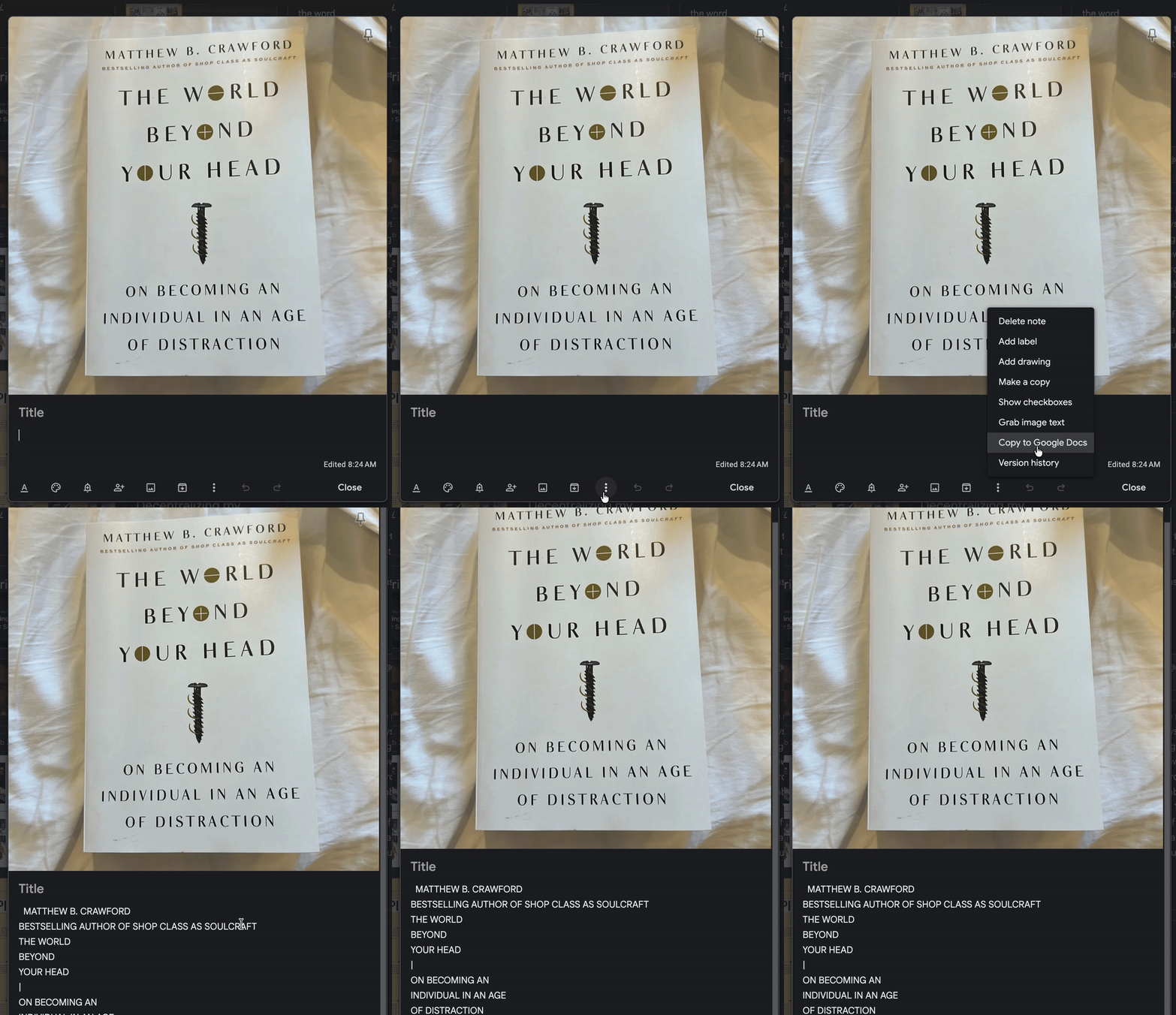
This is very useful for times when you see text that you want to capture, but it’s impractical to write it all down. Just take a photo of it and let Google Keep do the work for you.
Use #3: Voice recording with auto transcription
When creating a new note on Google Keep on a mobile device6, one of the options you are given is to create an audio recording. Choosing this option not only saves the original audio recording that you can play back, but also a transcription.
This is another useful capture situation where writing down a thought is impractical but talking it out is easy. Google has always been ahead of the game in terms of speech-to-text quality, and it’s baked into this tool.
Use #4: Throwaway checklists
I make a lot of one-and-done checklists — for example, things that I want to do over the weekend, or a list of places I need to go while running errands on a single afternoon. I don’t need to hang on to these checklists for later, so they don’t properly belong in my GTD system or my bullet journal. Fortunately checklists are one of the primary templates for Keep notes, so I can make these up on whatever device I have available, they sync up with my other devices automatically, and I can dispose of them later.
Post-it notes are also good for this, but sometimes paper is impractical whereas I am nearly 100% certain to have my phone on me in these cases.
Use #5: Non-Throwaway Checklists
I also have a lot of checklists that I do not want to be one and done, but which I use and reuse on a regular basis. Keep is my primary tool for this use because of the ability to reset and reuse checklists once they are checked off.
For example, I have a “Gig prep checklist” on Keep that I use when loading my music gear before a show. It is a detailed “pre-flight” checklist of the specific gear I need to pack and the containers I need to put it all into.
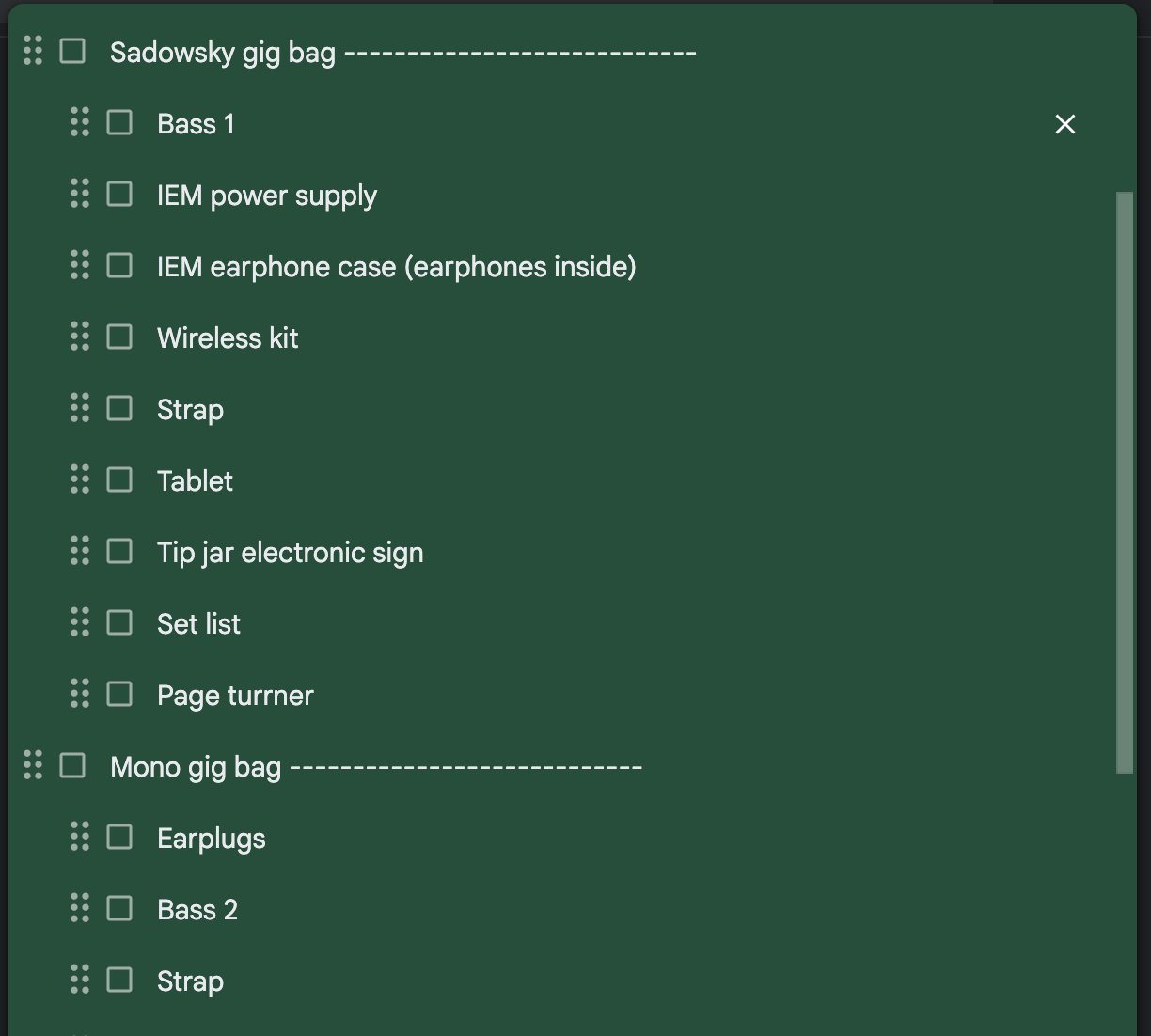
I have this list pulled up on the computer in my home studio space as I pack. As each item goes into its appropriate bag or case, I check off the item. Then when a bag or case is loaded into the car, I check that off as well. This way, as long as I pay attention when I am checking off items, I always leave the house confident that I have not left anything important behind.
I could do this on paper, but with a Keep note, there is an option to “Uncheck all items” on a checklist which resets it for later use. So for example when loading back up after the gig to come home, I can run through my list and make sure nothing gets left behind; then uncheck and reuse for the next gig, etc. This same idea can be applied to any recurring situation where you need to make sure certain things happen, and higher ed life is full of those.
Use #6: On-the-go hands-free brainstorming
I mentioned above that Keep notes can be used to capture and transcribe audio. But if you also have access to good speech-to-text tools, which are increasingly built into many devices, then you can use Google Keep to create text notes using your voice hands-free: Just open a regular text note and then use your tool and start talking and let the device capture the text into the note.
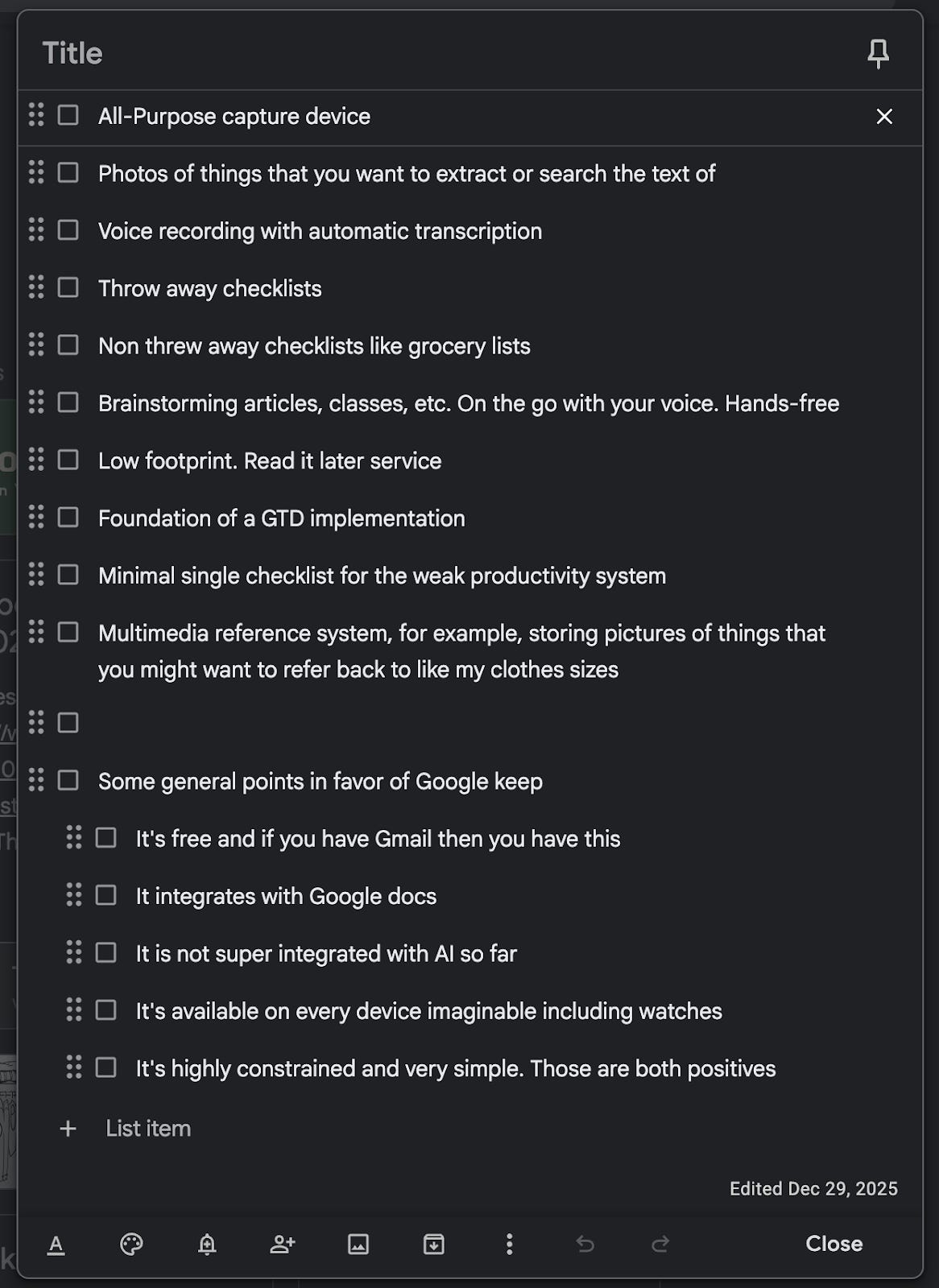
This has become my go-to method to outline and draft blog posts. When it’s time for me to do this, I will often grab my phone, put my walking shoes on, and go take a three-mile walk around my neighborhood with an empty Google Keep checklist open on my phone. Then as I walk and I think about what I want to write about, if an idea comes up, I’ll add it to the checklist using voice input, then hit enter to start a new checklist item and repeat until I’m done with my walk. This creates basically a bullet list of ideas, and as I incorporate them into the outline or draft (or decide not to), I just check them off.
Here for example is the outline I created for this article, while making dinner:
Use #7: Basic read-later service
If you encounter something online that you want to read but not write this second, you can save it to Google Keep and review it later. This is just capturing, but it’s a particular kind of capture that Keep is quite useful for doing, thanks to browser extensions and built-in sharing tools that make it easy. For the latter, on Android devices at least (I think this works on iOS too), if you have something on your device that you want to share, Google Keep is one of the destinations to which you can share it.
So it’s very easy to clip items to Google Keep on a device. In fact, it might be a little too easy, so you have to be aware of over-clipping and creating more read-later items than you can really consume. A computer tool will not substitute for your judgment.
Use #8: Foundation of a minimalist GTD implementation
I have never personally known anybody to do this in real life, but some folks have written or made videos about using Google Keep as the platform for GTD. Details vary but it might go like this:
You have one note for each of the main lists needed in GTD: Someday/Maybe, Next Actions, Waiting For, Projects, and Agendas. Those can be pinned so that they always appear at the top of your notes.
Also, one note for each project.
And possibly one separate note for each context that you use.
As well as individual notes for reference materials that you might save (or notes that contain links to where those materials are stored; if the reference materials are for a particular project then you can just dump the link into the card for the project).
And finally, one primary note called INBOX which is also pinned to the top for brain-dumping individual items.
The process of using a system like this would be basically the same as using any implementation of GTD. In fact, this feels very close to what David Allen originally did when he invented GTD and was using stacks of index cards — an Inbox card, one card per project, and one card per context for next actions.
One thing that Keep has in its favor, if you wanted to try this out, is that it has an extremely good search function — no surprise there since it’s a Google product. A search in Google Keep will go through not only the titles and text that’s in a note, it will also even search text that’s in images. Notes can also be tagged and the tags can be searched. Notes can also be color coded and the colors can be searched — for example, you can do a search for all the red cards. So when it comes to slicing and dicing your stuff in your system, the search feature makes this very flexible and easy to do.
Use #9: Foundation of an uber-minimalist non-GTD system
I recently learned that Steph Ango, the CEO of Obsidian, manages his to-dos by creating a single weekly note with a brief checklist in it:
Every week I create a weekly note, and write my to-dos for the week. I may add more items to it during the week.
If any items didn’t get done I roll them over to the next weekly note or drop them.
That’s it.
I usually write my to-dos from scratch without looking at the previous week’s list. This helps me decide which items I should drop. If I can’t remember a to-do it probably wasn’t that important.
This is not GTD: There are no contexts, projects, higher horizons, etc. — Although in a Twitter exchange with Steph, I expressed skepticism that this was truly all he was doing7.
Still, in the spirit of extreme simplicity, his single to-do list approach really fascinated me and I’ve been trying something like this out in my analog/digital hybrid system (that I will write much more about in a future post).
If you wanted to try what Steph is doing, then Google Keep would be a great place to do it because of the checklist functionality I mentioned above. Simply, at your weekly review, do what Steph does, just do it in a Keep note.
Use #10: Multimedia reference system
Even if you don’t use Keep for an entire GTD system, it could be useful as your reference system for a larger implementation especially when dealing with multimedia items. If you save a link, it will try to give you a preview of the link. Same if you save a video. If you save a picture and it happens to have text in it, you can search the text that’s in the picture. And as I mentioned above, the search feature in Google Keep, while not as fully featured as it could be (for example, you cannot do a Boolean search in Google Keep), does work pretty well with text that’s inside a picture, or labels, or colors, or types of notes, and so on.
I personally think something like Google Drive is a better way to have a reference system set up. But if you wanted to keep everything in Google Keep, you could certainly try it.
In conclusion…
In my view, Google Keep is one of the best things that Google has ever done. And we all know what Google sometimes does to products that people love, like Google Reader, which I’m still bitter about. It’s my great hope that Google Keep stays viable for a very long time. I see no information in the tech news that would suggest it wouldn’t. And that’s a good thing because it’s at the foundation of everything that I do — not quite a second brain, but pretty close to it.
Etc.
New easier way to get to this blog: You can now access this Substack using the better, shorter URL intentionalacademia.com. This is of course the same URL as before, except you don’t have to add “.substack.”. Nothing personal against Substack. It’s just a mouthful, and it makes it easier to remember and share without it. The old URL still works too.
Music: Unless you’re a bass nerd, you’ve probably never heard of Spanish bassist Vincen García. I’m a huge fan of his style — fast and funky, but mostly “fingerstyle” without all the slap bass technique8 that has taken over the instrument. Check out this tune from his new album and see what I mean.
At least that’s the general belief, although the true source is disputed.
I’m aware of the truism that “If the product is free, then you are the product” and that Google makes its money off other people’s data. If there is ever a serious competitor for Google Keep that solves this, I’ll consider it, but it’s a high bar.
This might be possible with a workaround, for example converting the PDF to an image, then embedding the image in a note which you then can annotate if you have a stylus… but this feels like way more work than I want to get into, whereas this is trivial on something like OneNote.
I used to be a hard-core Evernote guy back in the day — back when it was a do-everything, highly-capable app. But then the devs started adding one pointless feature after the next, which I didn’t need and which caused greater load on the servers, which raised the cost and made the sync janky. I barely ever use it now. I have about 7-8 years of my life archived in Evernote and I shudder to think that I really need to get all that stuff out at some point.
It’s also nice that while Keep can be accessed with Gemini, Google does not force AI upon you if you use the tool. Not yet at least, although I would suspect that that is coming at some point.
This function isn’t available in the browser. I highly recommend VoiceInk for speech-to-text which you can use to take auto-transcribed voice notes on a computer.
It’s not that what Steph is doing is “wrong”, I just believe there’s more to it than the blissful simplicity that he presents. There may be just a single weekly to-do list on paper, but in his brain I would imagine all the rest of GTD — contexts, projects, clarifying procedures, etc. — is present and accounted for. And my point is, just because it appears that one operates off of a single checklist doesn’t mean that the rest of the system isn’t there. It’s merely inside your head rather than outside it, and in my view that’s a losing proposition.
For bass nerds: Slap is fine, I know how to do it and I use it sometimes in my playing. But it’s overdone, and players today seem to value 100mph slapping over groove and musicality. I’d like to see more of the latter.